
While I was working on my first Android app, I found 9-patch (aka 9.png) to be confusing and poorly documented. After a little while, I finally picked up on how it works and decided to throw together something to help others figure it out.
Basically, 9-patch uses png transparency to do an advanced form of 9-slice or scale9. The guides are straight, 1-pixel black lines drawn on the edge of your image that define the scaling and fill of your image. By naming your image file name.9.png, Android will recognize the 9.png format and use the black guides to scale and fill your bitmaps.
Here's a basic guide map:
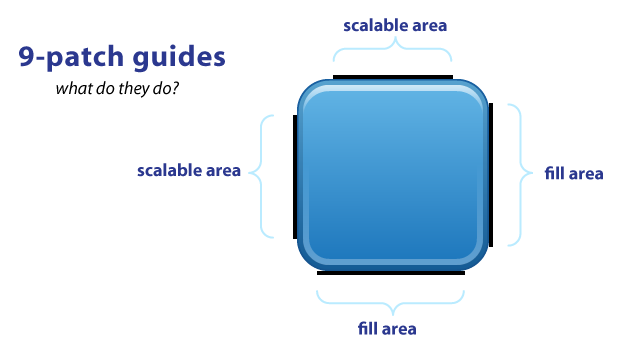
As you can see, you have guides on each side of your image. The TOP and LEFT guides are for scaling your image (i.e. 9-slice), while the RIGHT and BOTTOM guides define the fill area.
The black guide lines are cut-off/removed from your image - they won't show in the app. Guides must only be one pixel wide, so if you want a 48x48 button, your png will actually be 50x50. Anything thicker than one pixel will remain part of your image. (My examples have 4-pixel wide guides for better visibility. They should really be only 1-pixel).
Your guides must be solid black (#000000). Even a slight difference in color (#000001) or alpha will cause it to fail and stretch normally. This failure won't be obvious either*, it fails silently! Yes. Really. Now you know.
Also you should keep in mind that remaining area of the one-pixel outline must be completely transparent. This includes the four corners of the image - those should always be clear. This can be a bigger problem than you realize. For example, if you scale an image in Photoshop it will add anti-aliased pixels which may include almost-invisible pixels which will also cause it to fail*. If you must scale in Photoshop, use the Nearest Neighbor setting in the Resample Image pulldown menu (at the bottom of the Image Size pop-up menu) to keep sharp edges on your guides.
*(updated 1/2012) This is actually a "fix" in the latest dev kit. Previously it would manifest itself as all of your other images and resources suddenly breaking, not the actually broken 9-patch image.
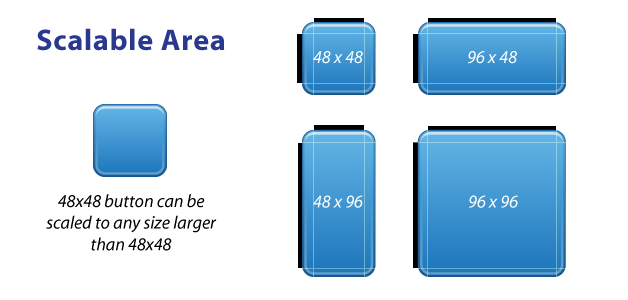
The TOP and LEFT guides are used to define the scalable portion of your image - LEFT for scaling height, TOP for scaling width. Using a button image as an example, this means the button can stretch horizontally and vertically within the black portion and everything else, such as the corners, will remain the same size. The allows you to have buttons that can scale to any size and maintain a uniform look.
It's important to note that 9-patch images don't scale down - they only scale up. So it's best to start as small as possible.
Also, you can leave out portions in the middle of the scale line. So for example, if you have a button with a sharp glossy edge across the middle, you can leave out a few pixels in the middle of the LEFT guide. The center horizontal axis of your image won't scale, just the parts above and below it, so your sharp gloss won't get anti-aliased or fuzzy.
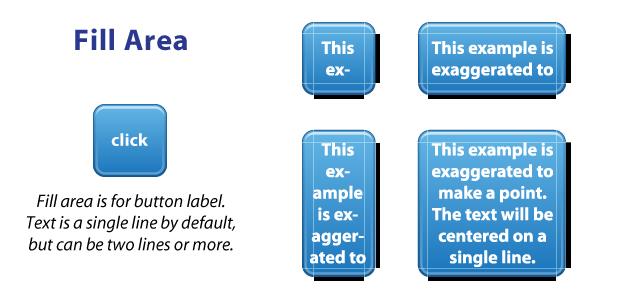
Fill area guides are optional and provide a way define the area for stuff like your text label. Fill determines how much room there is within your image to place text, or an icon, or other things. 9-patch isn't just for buttons, it works for background images as well.
The above button & label example is exaggerated simply to explain the idea of fill - the label isn't completely accurate. To be honest, I haven't experienced how Android does multi-line labels since a button label is usually a single row of text.
Finally, here's a good demonstration of how scale and fill guides can vary, such as a LinearLayout with a background image & fully rounded sides:
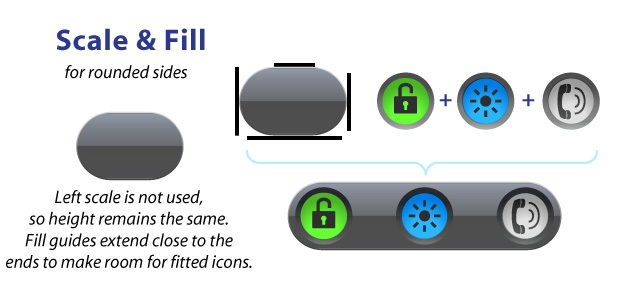
With this example, the LEFT guide isn't used but we're still required to have a guide. The background image don't scale vertically; it just scales horizontally (based on the TOP guide). Looking at the fill guides, the RIGHT and BOTTOM guides extend beyond where they meet the image's curved edges. This allows me to place my round buttons close to the edges of the background for a tight, fitted look.
So that's it. 9-patch is super easy, once you get it. It's not a perfect way to do scaling, but the fill-area and multi-line scale-guides does offer more flexibility than traditional 9-slice and scale9. Give it a try and you'll figure it out quickly.
For more useful tips, follow me on Twitter.
When i use 9 patch image it gave error No resource found?
Plz give proper guideliness.
its well explained
thanx for sharing .
A good introduction to 9-patch images
Along with the multiple stretch regions, would be worthwhile to point out:
– trying to shrink the size of a 9patch (e.g. by specify height in xml that’s smaller than the image’s height) will typically result in nasty visual artefacts.
– some tools available for creating/editing.
In tutorial you said image size should by 48×48 and after creating 1 pixel black line line its size become 50×50.
1. Please tell me what should be original image size for xhdpi, hdpi, ldpi and mdpi?
2. Do I first create an image for xhdpi, hdpi, ldpi and mdpi and then separately create 9 path image?
xhdpi == 2x mdpi
xxhdpi == 3x mdpi
What is left scale & right scale?
i hav written a code to click an image and set it on an imageview.
nw how do i stretch this image?? i.e. dynamically…
was not ableam now able to to understand the 9-patch but done it bro! Hats off to youThank you !
Android won’t recognize a 9-scale without something on the left side. That’s why I did a full bar, so it stretches naturally, which in this case is not at all.
If i am using these images ‘a black border’ is coming. that is 1 px guide line as u said in ur tutorial. how to remove it.
or am I missing something, Please help!!!
thank